HeyGen: AI Video Generator
- 4.7
- Rating
- 1.00M
- Installs
- Free
- Price

 Analysis by App-foxy
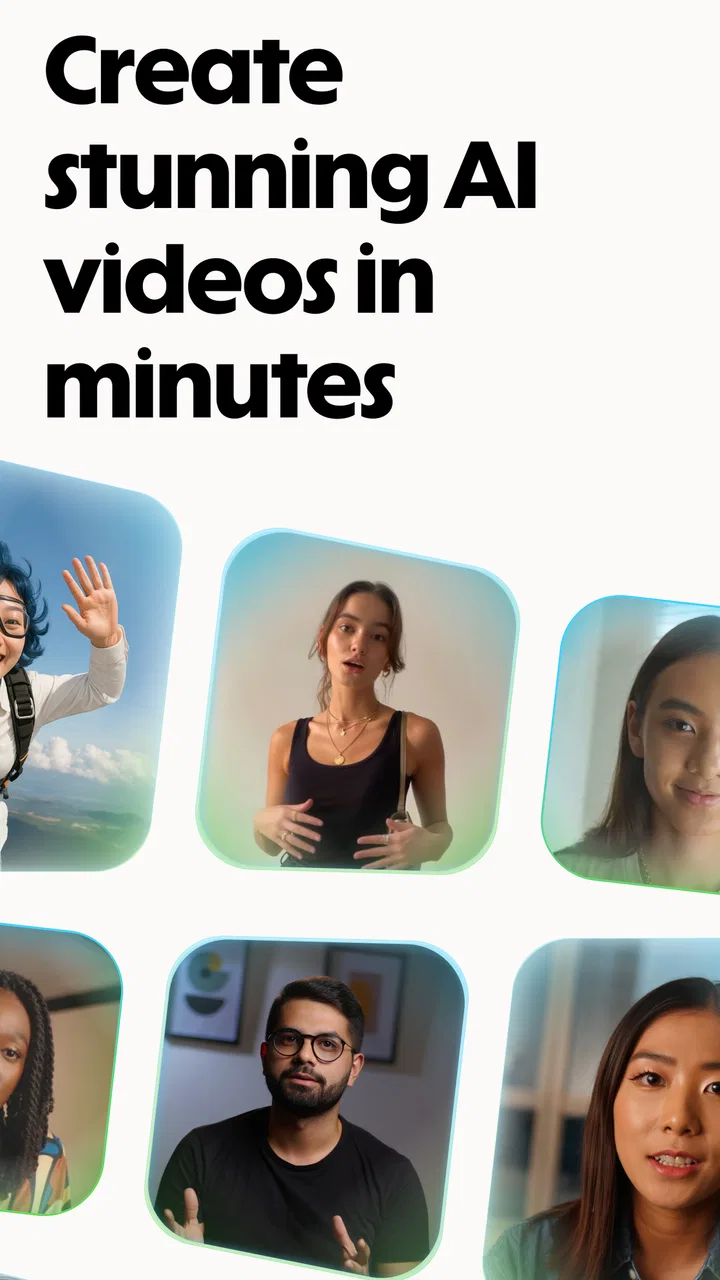
I found HeyGen: AI Video Generator most interesting as a quick video-making tool for a household where several people need to create different kinds of clips on the same device. One person might want a short presentation, another may be experimenting with an avatar, and someone else may simply want to turn a photo into a moving message. The app is built around AI-assisted video creation rather than traditional editing, so the appeal is speed: you start with an idea, text, or image and work toward a presentable result without building every scene manually.
That convenience is also the key thing to understand before installing it. I would not treat it as a complete replacement for a full video editor. I see it more as a focused creation tool for generating a first version quickly, especially when speaking on camera is inconvenient or when a polished visual explanation matters more than detailed timeline control. In my experience, that makes it useful for personal projects, school-style presentations, small business communication, and social clips, while people who want precise cuts, complex sound mixing, or frame-by-frame control may feel restricted.
How it fits into a shared household workflow
A realistic household use case is a shared tablet or phone used by different people at different times. Imagine one family member preparing a short explainer for work, another creating a birthday greeting from a photo, and a teenager testing an avatar-based story. The attraction is that each project can begin from a different starting point, yet the app keeps the creative process centered on AI video rather than requiring everyone to learn a conventional editor.
You May Also Like

 Blood Strike: 2.5 Anniversary
Blood Strike’s Loadouts Turn Every Drop Into a Tactical Gamble
A close look at Blood Strike’s custom loadouts: how fast access to signature weapons reshapes its battle royale rhythm, rewards preparation, and narrows the gap between fights.

 Pandora - Music & Podcasts
Pandora’s Music Is Easy to Start, but Harder to Recover
Pandora’s strength is its low-effort path from a seed to a station. Its weak spot is how much confidence it asks you to place in connection, setup, and quiet recovery.

 8 Ball Pool
 Is Built on Rivalries, Rematches, and Routine
A close look at the rivalries, rematches, shared routines, and unanswered safety questions that turn a quick pool match into a persistent mobile community.

 Samsung Music
’s Quiet Strength Is Playing What You Already Own
Its reach comes less from spectacle than from dependable access to a personal library. That simplicity is both the app’s strongest retention engine and its ceiling.

 AccuWeather: Weather Radar
AccuWeather Review: A Quick, Clear Forecast for Everyday Decisions
For everyday plans, the best forecast is the one you can understand quickly. AccuWeather makes rain timing, radar, and local conditions easy to act on, with a few trade-offs.

 Hill Climb Racing
Why Hill Climb Racing Still Turns Crashes Into One More Run
A tiny car, a bumpy hill and one more upgrade: Hill Climb Racing keeps resurfacing because its simple chaos makes every near-miss feel personal.
More From Our News Desk



I would begin by agreeing on what the device is being used for before anyone opens the editor. AI video tools can make it easy to produce something quickly, but quick creation can also encourage careless choices. A shared device is a poor place for leaving unfinished ideas, private photos, or draft messages visible to everyone. The practical habit is to decide whose project is active, use clearly recognizable project names if the app offers that kind of organization, and remove or export finished work when the device is going back to another person.
The app’s three main creative directions give each household user a different entry point. Avatar-based videos are suited to someone who wants a presenter without recording themselves. Text-to-video is a natural fit for turning a written outline into a visual message. AI photo-to-video is more personal and can be appealing for greetings, memories, or simple visual experiments. These approaches are not interchangeable: an avatar can explain, text can structure an idea, and a photo can provide an emotional starting point.
One useful workflow is to separate writing from generation. I would draft the message in a notes app first, shorten it, and remove anything that sounds ambiguous before bringing it into the video process. AI-generated presentation is usually more convincing when the source text is direct. Long paragraphs, jokes that depend on timing, and instructions with several meanings can produce a result that needs more correction than expected. Preparing the wording first saves time and makes it easier for another household member to review the content before it becomes a video.
For a shared-device scenario, I would also keep the first attempt deliberately small. A short greeting or single-topic explanation is better than beginning with a long project involving several visual ideas. This lets each person learn how the app handles text, avatars, and images without consuming a large amount of time on a result that may need to be rebuilt. The strongest benefit here is not that the app removes all creative work; it reduces the amount of technical work between an idea and a usable draft.
What the first setup tells you
HeyGen Technology Inc. presents this as a video players and editors app, but its personality is closer to an AI production assistant than a conventional editing suite. The app is free to install, which makes it easy to test the basic experience before deciding whether it belongs in a regular household workflow. The free starting point is helpful for experimentation, although in-app items range from around five dollars to nearly two hundred eighty dollars each, so I would not let a child or casual user assume that every creative option is included without checking the purchase screen carefully.
The app is rated for Everyone, and that makes the general audience positioning straightforward. It does not mean every possible video idea is automatically suitable for every member of a household. A family should still discuss what images may be used, whose likeness is being represented, and where a generated video might be shared. The age label helps with broad suitability, but it should not replace adult judgment when the project involves personal photos, school work, public posting, or someone appearing to speak through an avatar.
The current version is 1.0.5, and I would approach it as a relatively focused tool rather than a mature, all-purpose studio. That matters when setting expectations. A first release can feel exciting because the central idea is clear, but users who expect the depth of a long-established editor may notice that AI generation is the priority. I would install it on a device that has enough free space for media work and keep the operating system requirement in mind: it needs Android or iOS equivalent to version 10 or later.
One boundary I consider important is the difference between access to the app and access to a person’s creative identity. If several people use the same device, they should not casually share one person’s account session or assume that a generated project belongs to everyone. The app may be free to download, but account activity and purchases are still matters worth handling deliberately. I would have one adult oversee billing and let other users ask before starting anything that might lead to a paid item.
Another setup boundary concerns source material. When using the photo-to-video route, I would choose an image that everyone appearing in it is comfortable using. That is especially important in a family because a funny experiment can involve someone who did not expect their face or photograph to become part of an AI-generated clip. The same care applies to avatar-style videos: the convenience of making a presenter does not remove the need to think about consent, context, and whether the finished result could mislead someone.
Coordinating projects without turning the app into a chore
Coordination is where a shared-device experience can either work smoothly or become frustrating. I would give each project a simple purpose before starting: “birthday message,” “science explanation,” or “short product introduction.” That small step prevents the app from becoming a pile of unnamed experiments. It also makes it easier for the next person to understand what is finished and what still needs attention.
A helpful division of labor is to let one person write, another check the facts, and a third decide whether the visual style feels appropriate. This is particularly useful for children or younger teens working with an adult. The person generating the video does not need to make every decision alone. A second pair of eyes can catch a wrong emphasis, an awkward sentence, or a photo that should not be used. In a household, the app works best when it supports collaboration rather than pretending that the AI can replace review.
I would also create a simple review loop: generate a short draft, watch it with the sound on, check the words against the intended message, and only then think about sharing. AI video can look convincing enough that viewers may assume the speaker, avatar, or visual sequence represents a deliberate statement. Watching the complete result is more reliable than judging it from the script alone. A sentence that looked fine in writing may feel too fast, too formal, or strangely emphasized once turned into a video.
The most useful non-obvious trade-off is that speed can shift effort from editing to checking. With a traditional editor, I expect to spend time cutting clips and arranging layers. With an AI generator, I may spend less time assembling the video but more time deciding whether the generated result actually communicates what I meant. That is not a flaw unique to this app; it is the central bargain of automated creation. People who enjoy hands-on editing may prefer the control of another tool, while people who dislike timelines may appreciate this approach.
For a family presentation, I would use text-to-video to make the first draft, then keep the written outline nearby while reviewing it. For a personal greeting, I would start with photo-to-video and keep the message short so the image remains the focus. For an explanation that needs a human-like presenter, I would try an avatar, but I would avoid making it appear that a real person said something they never said. That distinction is easy to overlook when the process feels playful.
Age, trust, and responsible use
The Everyone rating makes the app approachable for a broad audience, but trust still depends on how the household uses it. I would introduce younger users to the idea that generated video is a creative output, not automatic proof that an event happened or that a person delivered a message. This is a good opportunity to explain that a convincing face, voice, or presentation style can still be synthetic and should be labeled honestly when context requires it.
I would be especially careful with school assignments. The app can help a student turn an outline into a more engaging presentation, but generating the entire work without understanding it defeats the educational purpose. A better approach is to have the student write the key points, use the app to explore presentation ideas, and then check every claim before showing the result. The tool is most valuable when it helps communicate the student’s thinking rather than hiding whether the student has done the thinking.
Photo use deserves a separate conversation. A household may contain old family pictures, images of friends, or pictures taken at school events. I would not upload an image simply because it is available on the shared device. The person who took it, the people shown in it, and the intended audience all matter. Even a harmless-looking animation can feel uncomfortable if someone discovers that their face was used without being asked.
There is also a trust issue around public sharing. I would keep the first few creations private while learning the app’s workflow and reviewing the output. If a video includes an avatar, a personal photo, or a message that could be mistaken for a real statement, I would make the synthetic nature clear. This is not about making every family project formal; it is about preventing a playful experiment from being misunderstood outside the home.
Parents or guardians should also explain the purchase boundary before handing over the device. The app costs nothing to download, but optional items can become expensive at the upper end of the range. I would keep payment decisions with an adult, read each purchase screen, and avoid treating a free installation as permission to explore every paid option. That is a sensible rule for any creative app, but it matters more here because the promise of faster generation can make an upgrade feel urgent.
Where it beats ordinary editors, and where it does not
Compared with a standard mobile editor, HeyGen is more appealing when the hardest part is producing a presenter or transforming a written idea into a video concept. Traditional editors are excellent when I already have footage and want to trim it, reorder it, add music, or control the exact timing. They usually demand more manual work, but that work gives me predictable control. This app reverses the balance: it aims to make creation more accessible, while accepting that the generated result may need judgment and refinement.
Compared with slideshow makers, the avatar and text-driven approach can make an explanation feel more like a presentation than a sequence of static images. That is useful for a short lesson, an introduction, or a message that benefits from a visible speaker. The limitation is that a slideshow can be easier to keep accurate because I decide exactly which image and line appear at each moment. When precision matters more than speed, the simpler tool may be the better choice.
Compared with camera-based social apps, this app is less about capturing a spontaneous moment and more about constructing a message. I would choose a social camera tool for an immediate reaction or casual clip. I would choose HeyGen when I want a prepared script, an avatar-led explanation, or a photo transformed into something more animated. The distinction helps avoid disappointment: it is not primarily a replacement for recording real family moments.
One practical limitation is that AI assistance does not guarantee a perfect first result. If the wording is unclear, the tone may feel wrong. If the source image is unsuitable, the photo-to-video idea may not land as intended. If the project needs exact timing, a conventional editor may still be faster because I can make the correction directly instead of regenerating. I would judge the app by how much time it saves on the whole project, not by how quickly it produces the first draft.
The app’s strong rating of 4.8 from around eight thousand ratings and its base of over one hundred thousand installs suggest that many users find the concept appealing. I treat those figures as a sign of interest rather than a guarantee that it will suit every workflow. My own recommendation depends on whether the user wants AI to handle part of the presentation process. If the answer is yes, the app has a clear reason to exist; if the answer is no, a familiar editor may feel more comfortable.
Who should use it and who should skip it
I would recommend it to a household that wants to make short, polished-looking videos without asking everyone to learn a complicated timeline editor. It is a good candidate for a parent helping with a presentation, a small team preparing a quick explanation, or a creative user who wants to explore avatars and image animation. It also suits people who have ideas but feel uncomfortable appearing on camera.
I would be more cautious recommending it to someone whose main goal is editing real footage with precise control. A wedding montage, a carefully timed music video, or a documentary-style project may be better handled in a conventional editor. I would also skip it for anyone who dislikes reviewing AI-generated output or who expects the app to understand a vague idea perfectly on the first attempt.
For shared devices, I would recommend it only with clear household rules: decide who is using the session, keep purchases under adult control, ask before using another person’s photo, and watch each draft before sharing. Those rules do not make the app difficult; they make its fast workflow safer and more predictable. The app is most enjoyable when everyone understands that generation is the beginning of the creative process, not the final approval.
Its free entry point makes testing easy, and the Everyone rating supports broad household access. Still, the optional purchase range means I would approach the app as free to try rather than assume that every useful capability will remain free. That distinction is important for families, especially when several people are curious and each person may interpret an upgrade prompt differently.
HeyGen: AI Video Generator is a focused and promising choice for AI-assisted video creation. I like it most when I need to move from a script, avatar idea, or personal image to a presentable draft without wrestling with a full editing timeline. I like it less when the project demands exact control, extensive footage management, or a completely hands-on creative process.
For a household, my verdict is positive with boundaries. I would install it for short experiments, presentations, greetings, and collaborative ideas, while keeping account access, photos, and purchases organized. The best results come from treating the app as a fast creative partner, not an automatic substitute for consent, fact-checking, or human review. If that balance suits you, it is worth trying; if your priority is detailed manual editing, another video tool will probably serve you better.
FAQs for HeyGen: AI Video Generator
01What is HeyGen: AI Video Generator and how does it work?
HeyGen: AI Video Generator is a cutting-edge app that uses artificial intelligence to create high-quality videos with minimal user input. By leveraging AI algorithms, the app automates video editing processes, allowing users to generate professional-looking content quickly. Simply upload your clips, and the AI handles transitions, effects, and even music synchronization.
02Is HeyGen suitable for beginners in video editing?
Absolutely! HeyGen is designed with user-friendliness in mind, making it ideal for beginners. The intuitive interface guides users through each step of the video creation process. Even those with no prior video editing experience can produce impressive videos thanks to the app’s AI-driven features that simplify complex editing tasks.
03What platforms is HeyGen available on, and is it free to use?
HeyGen is available for both Android and iOS devices. The app offers a free version with basic features, allowing users to explore its capabilities without any cost. For advanced features, such as additional effects and higher resolution exports, in-app purchases or a subscription may be required.
04How does HeyGen ensure the privacy of my uploaded content?
HeyGen prioritizes user privacy and data security. Any uploaded content is processed in a secure environment, and the app follows strict privacy protocols to ensure data protection. Users can review the app’s privacy policy for detailed information on data handling and security measures employed by HeyGen.
05Can HeyGen be used for professional video projects?
Yes, HeyGen is versatile enough for professional use. Its advanced AI tools and high-quality output options make it suitable for creating marketing videos, presentations, and more. While the app is beginner-friendly, it also provides features that meet the needs of professional video creators requiring efficiency and quality.
Pros
- User-friendly interface for easy navigation.
- High-quality video output every time.
- Variety of templates for diverse needs.
- Fast rendering speeds save time.
- Seamless integration with social media.
Cons
- Limited customization for advanced users.
- Requires strong internet for best performance.
- Occasional glitches with complex projects.
- Subscription needed for premium features.
- Mobile version lacks some desktop features.

HeyGen: AI Video Generator
Gallery